Writing in Scriblit
Draft the way you always have — type, select, format. The difference is that Scriblit understands the shape of a picture book: spreads, page budgets, and art notes are first-class citizens.
Spreads
A spread is the pair of facing pages a reader sees when a picture book lies open. In Scriblit, you divide your manuscript into spreads with spread dividers — horizontal rules labeled with the page range they represent, like [4–5] or [6–7].
- Insert a spread divider at the cursor with Format → Add Spread at Cursor, the book icon in the icon bar, or Ctrl+Shift+Enter (⌘+Shift+Return on Mac).
- Page-range labels are computed automatically from your first content page and total pages settings — renumbering happens for you as you add, move, or delete spreads.
- The status bar shows how many spreads and pages you have used against the maximum your page budget allows, and warns you when the manuscript runs over.
New to spreads, page counts, or self-ended books? See Picture Book Basics for the publishing conventions behind these numbers.
Illustration notes
An illustration note (also called an art note or “illo note”) is a brief suggestion to the illustrator — used only when the visual carries meaning the text doesn’t. Scriblit styles illustration notes distinctly and brackets them on export, so agents and editors can immediately tell story text from art direction.
- Toggle the current paragraph into an illustration note with Format → Illustration Note, the palette icon, or Ctrl+Shift+I.
- Words inside illustration notes are excluded from your manuscript word count — the count agents care about — and reported separately.
Author notes
Author notes are private margin notes for yourself — reminders, questions, alternate lines — anchored to a passage or paragraph. They live in the Notes panel, never appear in your manuscript text, and are saved with your .spb file.
- Select text (or just place the cursor in a paragraph), open the Notes panel from the top-right of the editor, and choose Add note.
- A colored marker appears in the margin next to the anchored block — click it (or the note card) to jump back to that spot.
- If you rewrite the passage a note was anchored to, the note is kept and listed as detached so you can re-attach it to new text.
Formatting
Bold (Ctrl+B), italic (Ctrl+I), underline (Ctrl+U), and strikethrough are available from the Format menu and icon bar. Picture book manuscripts are intentionally plain — Scriblit keeps the options minimal so your export always looks professional.
Focus Mode
Focus Mode (the eye icon, or File → Focus Mode) hides spread dividers and illustration notes so you can read your story text straight through — the way an agent reading aloud would experience it. Toggle it off to return to the full spread view.
Word and page counts
- The word count chip in the toolbar shows your live manuscript word count (illustration notes excluded). You can enable a warning threshold in Preferences — useful for staying under the typical 500–600 words of a modern picture book.
- The status bar shows pages used (e.g.
28 / 32 pages) and spreads used (e.g.13 / 15 spreads). - Select any passage to see a word count for just that selection.
Preferences
File → Preferences opens document and editor settings:
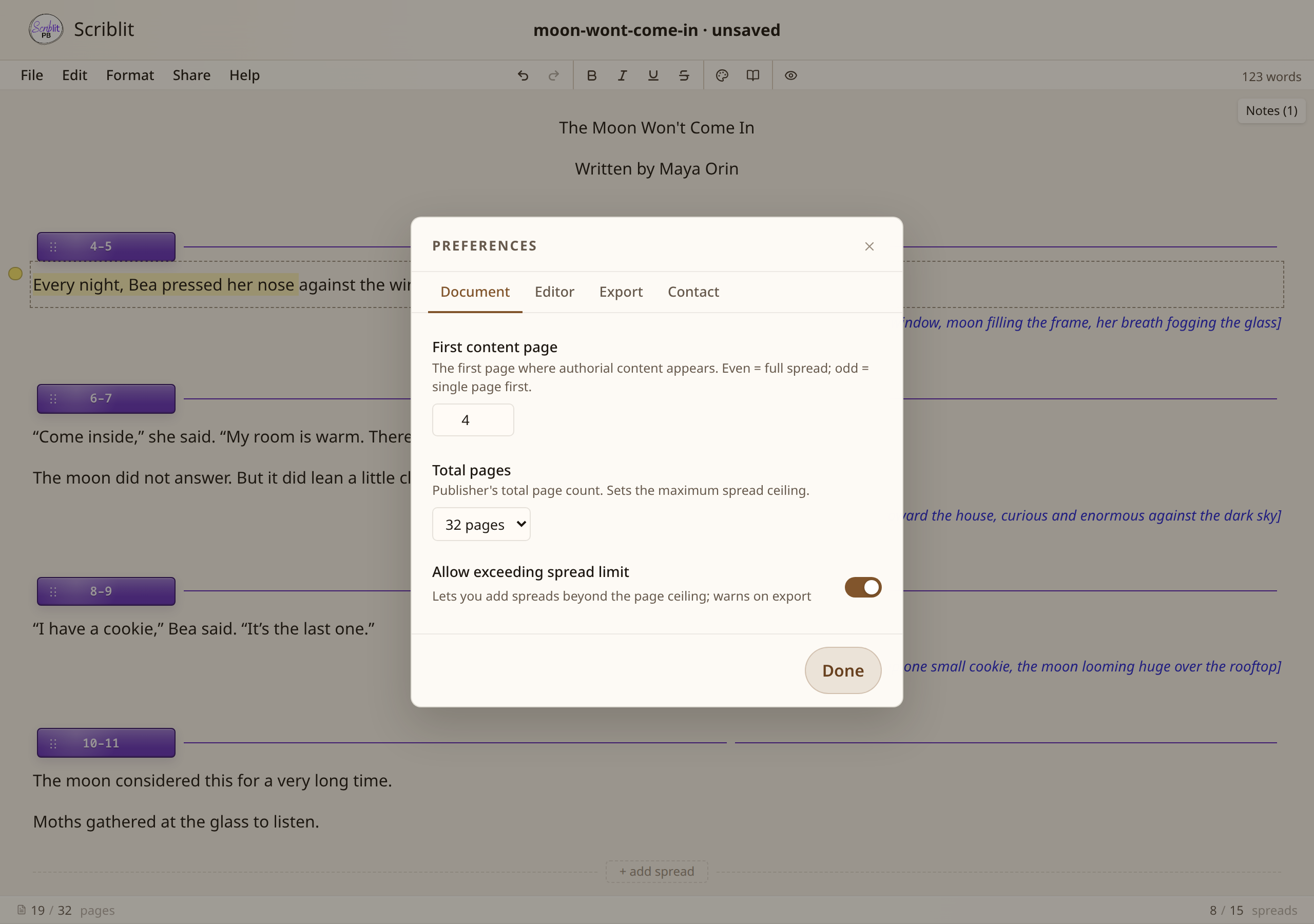
- First content page — the page where your story begins (default 4). An even first page starts on a full spread; an odd first page starts on a single right-hand page.
- Total pages — your page budget. Presets cover the standard industry trim counts: 24, 28, 32, 40, 48, and 64 pages.
- Back matter — whether back matter counts toward your word count.
- Contact details — name, email, and phone used in the header of submission-ready exports.
- Icon bar size and visibility, export label position, and more.